
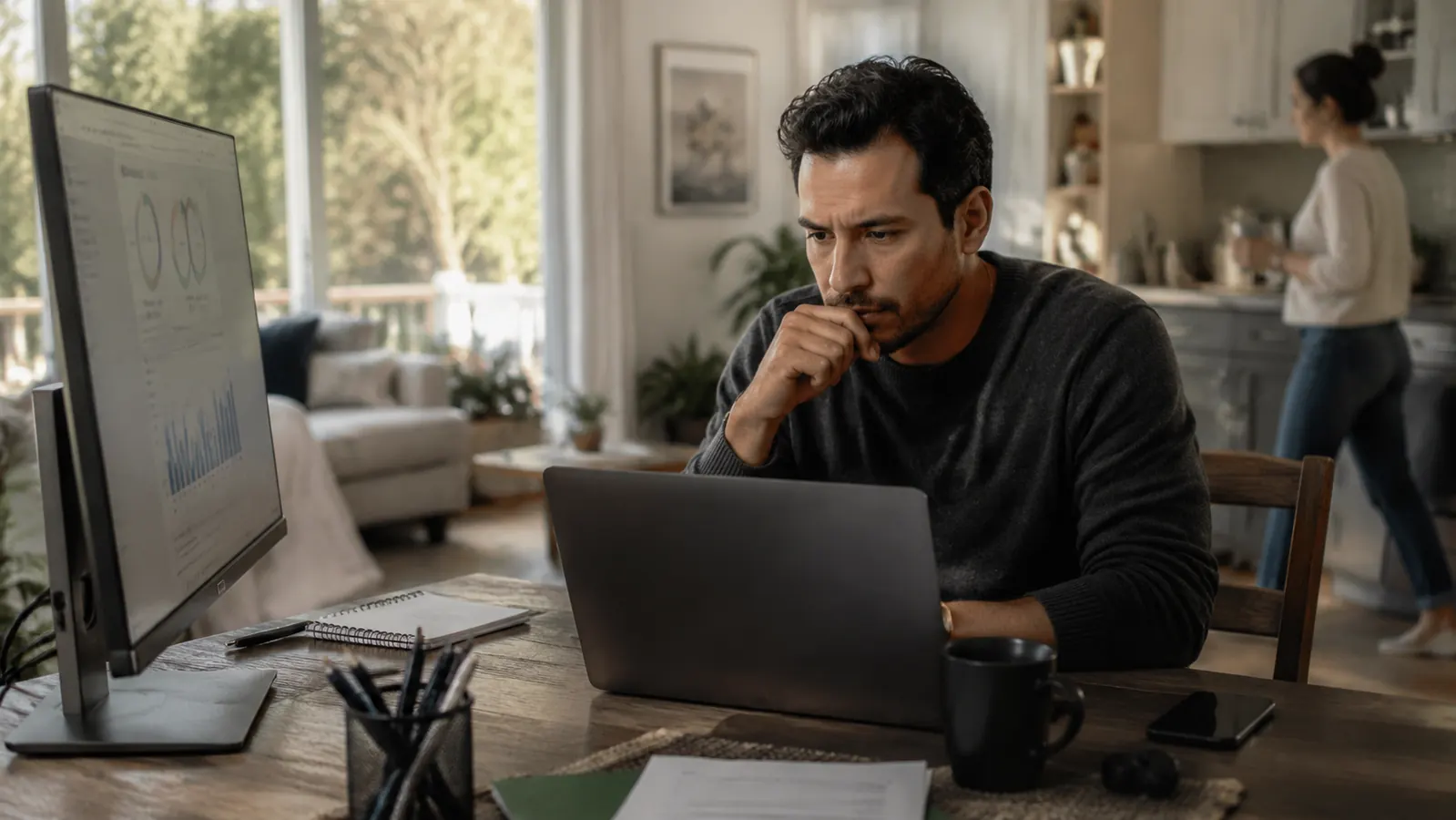
My home office used to be the kitchen table. That sounds fine until you factor in two teenagers who walk through every twenty minutes, a spouse on lunch break who glances at whatever is on screen, and the occasional video call where my laptop camera made the whole setup visible to fifteen coworkers. I was handling confidential client contracts on that table. Nobody had bad intentions. That was almost the problem. The exposure was casual, constant, and completely invisible to me until something actually went wrong.
Screen snooping in a shared home is not a dramatic corporate espionage scenario. It is your teenager reading a salary figure over your shoulder. It is your spouse glimpsing a client email thread that was not meant for them. It is a visiting family member seeing your browser history on a 27-inch display from across the room. These small moments compound over time, and for anyone handling sensitive work, legal documents, healthcare data, or financial information, the stakes are real. The fix is not complicated, but it does require a few deliberate steps.
Stop Side-Viewers Before You Read Any Further
The SightPro 27-Inch Monitor Privacy Screen Filter blocks visibility beyond a 60-degree cone. Rated 4.3 stars from over 4,000 verified buyers, it attaches in minutes with no tools and no adhesive. If you work with any data you would not want a stranger reading, this is the fastest fix on this page.
Amazon Check Today's Price on Amazon →Step 1: Audit Your Current Screen Exposure
Before buying anything, walk your own space honestly. Sit down at your usual work spot and ask someone else to move through the room as they normally would. Where can they see your screen? From the kitchen? From the hallway? From behind the couch? Most people have never done this exercise and are surprised by how much is visible from angles they do not think about while they are working.
Write down the three highest-risk positions in your space: the angle with the widest sightline, the spot where people linger longest, and the direction your camera-connected device faces during calls. You are going to address each of those in the steps below. Do not skip this audit. Buying gear without knowing your actual exposure pattern means you might solve the wrong problem first.
Pay particular attention to screens that face doorways or are visible from common areas. A monitor angled toward a living room is a persistent liability every hour you are working. A laptop on a breakfast bar is visible to anyone standing at the kitchen sink. These are physical problems, and they have physical solutions.
Step 2: Reposition Your Desk and Monitor
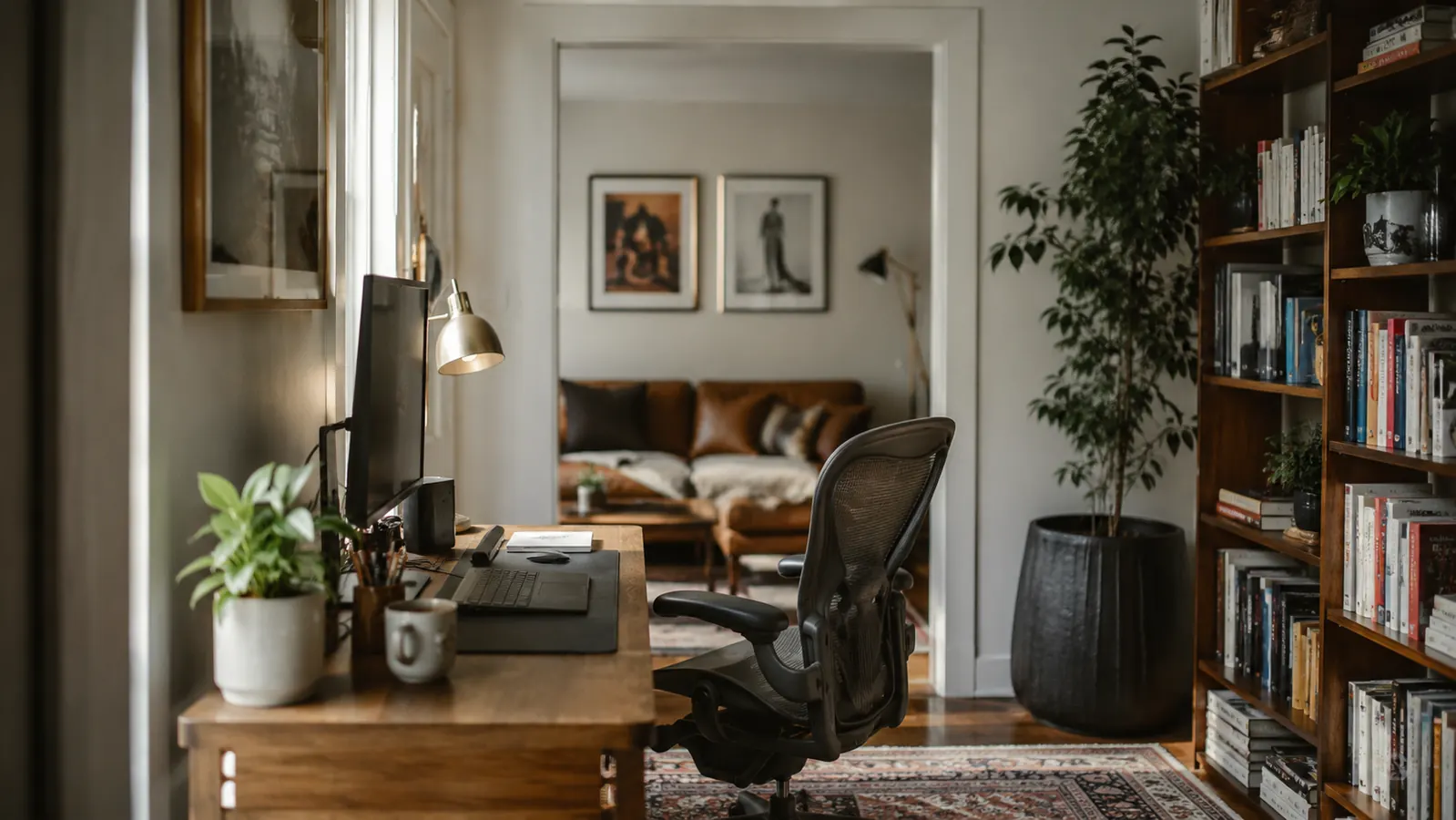
Positioning costs nothing and solves a surprising amount of the problem. The goal is simple: your back should face the room, not your screen. When your monitor points toward a wall and you face that wall, anyone entering the space behind you sees the back of your head and nothing else. This single change eliminated about half my exposure without spending a dollar.
If a wall-facing position is not available, angle the monitor at a steep enough diagonal that its face is not visible from the room's main entry points. Even a 30-degree rotation can eliminate a sightline from a doorway or hallway. Tilt the monitor slightly downward so the viewing angle tightens. The natural viewing cone for most monitors is wide enough to be visible from fifteen feet at eye level. Tilting down narrows that cone significantly.
Standing desk users have an extra option: raising the desk and tilting the monitor down when working standing makes the screen nearly invisible to anyone not at the same height. If you share a space with people of different heights, children in particular, adjusting your working height is an underrated privacy move.
Step 3: Apply a Monitor Privacy Filter
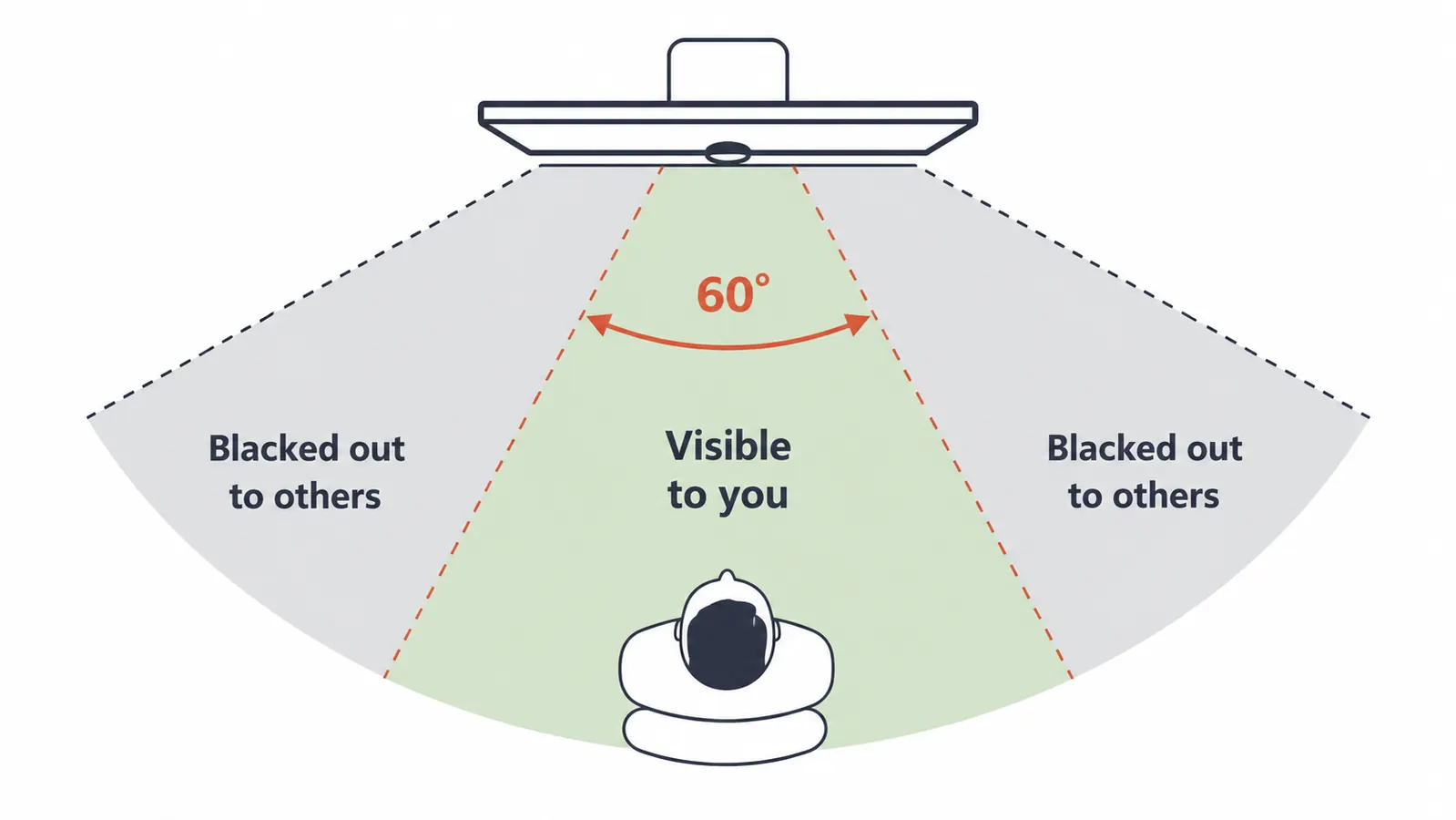
Repositioning handles the obvious angles. Privacy filters handle the rest. A monitor privacy filter is a thin film that fits over your screen and uses micro-louver technology to block the display to anyone outside a narrow viewing cone, typically 60 degrees total, 30 degrees to each side of center. Inside that cone, you see a perfectly normal display. Outside it, the screen appears nearly black.
The SightPro 27-Inch Privacy Screen Filter is the one I recommend for most home office setups. It covers the full 16:9 panel on a 27-inch monitor without cutting corners on fit. The anti-glare coating on the front surface reduces reflection even in bright rooms, which is useful if you are working near a window. Attachment uses four thin side strips that clip to the monitor bezel, no adhesive, no tools, no damage to the display. You can take it off and put it back on when you move between locations.
One honest note: privacy filters do reduce peak brightness by roughly 30 to 40 percent. That is normal for this technology class. If you work in a dark room or already run your monitor near maximum brightness, you will not notice it. If your display already feels dim and you rely on it for color-accurate design work, test the filter first and be prepared to adjust your brightness settings upward.
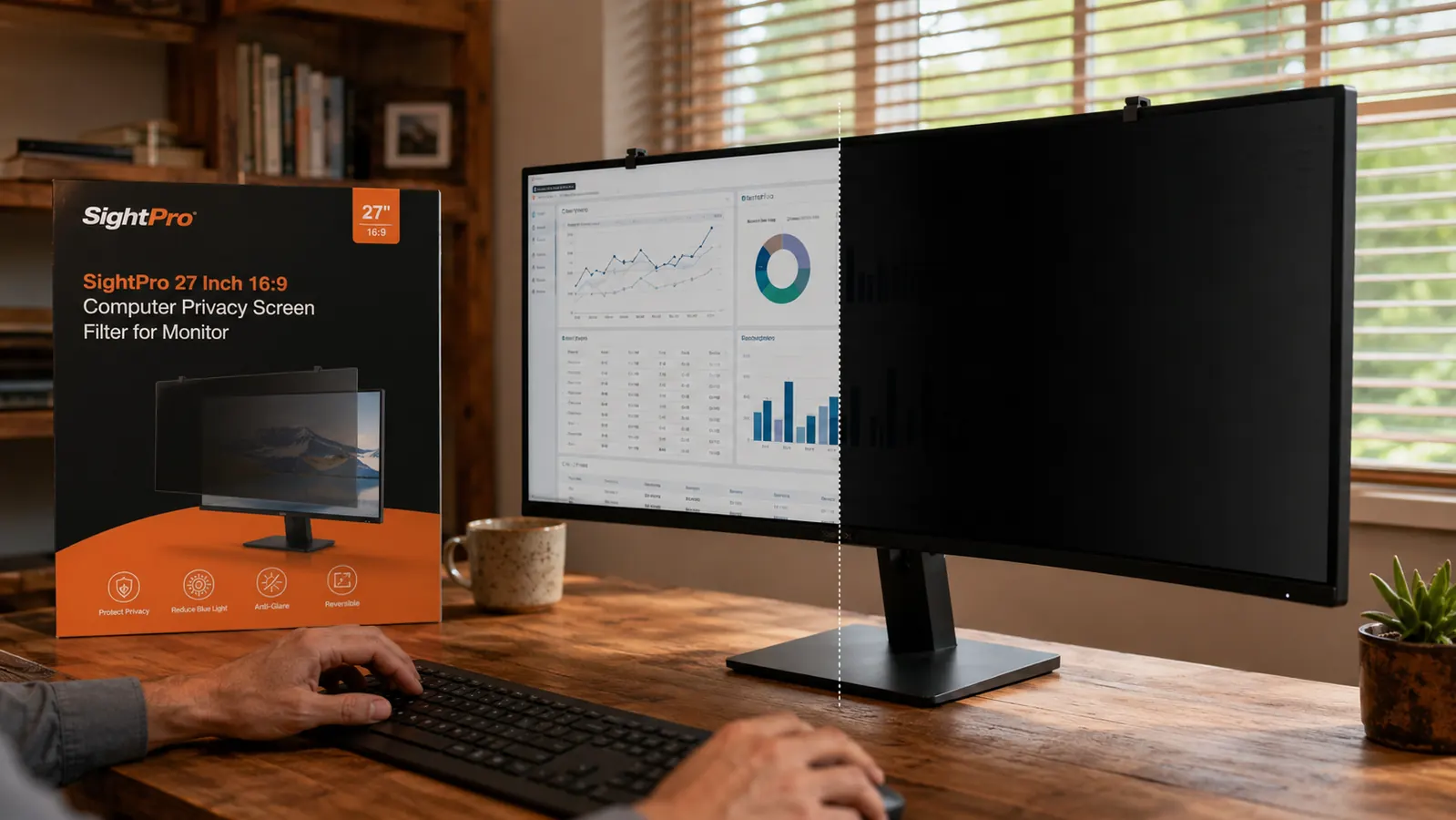
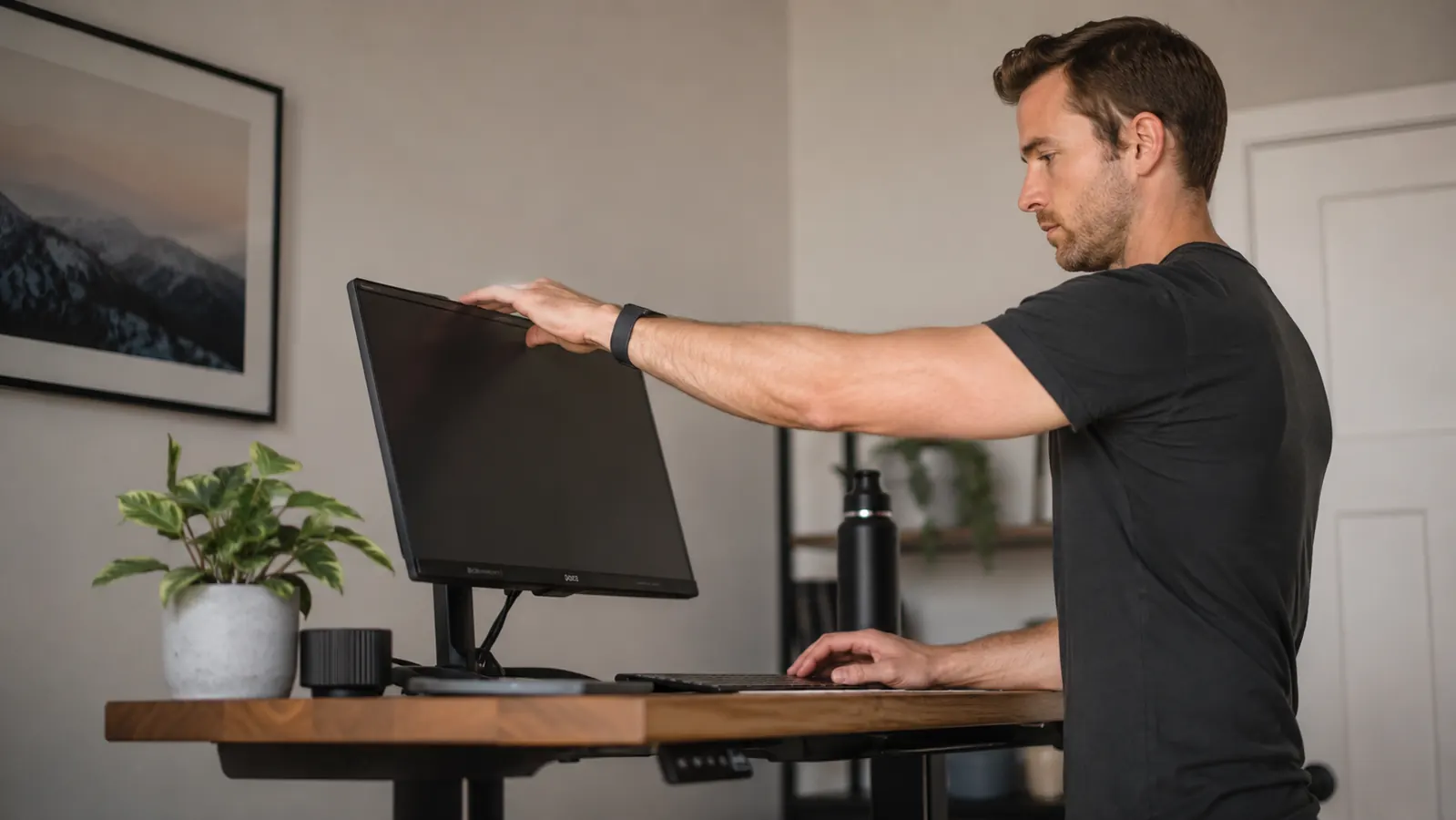
Inside the viewing cone, everything looks perfectly normal. Step outside 30 degrees to either side, and the screen goes dark. That is the whole mechanism, and it works exactly as advertised.
Step 4: Lock Your Screen Automatically on Every Departure
A privacy filter protects passive viewers. It does not protect you when you walk away from your desk. The screen is still on, still showing your work, still readable by anyone who walks up to it directly from the front. Automatic screen lock closes that gap entirely.
On Windows, set your screen to lock after one to two minutes of inactivity: Settings, Accounts, Sign-in options, then set 'Require sign-in' to 'When PC wakes from sleep' and pull your sleep timer to one minute. On Mac, go to System Preferences, Security and Privacy, and check 'Require password immediately after sleep or screen saver begins,' then set your screen saver to activate after one minute. On both platforms, memorize the manual shortcut: Windows Key plus L on Windows, Command plus Control plus Q on Mac. Use it every single time you leave your seat, even for thirty seconds.
This step matters more than people expect. In a shared home, the window between you leaving for a glass of water and someone glancing at your screen is often under a minute. Automatic locking at one minute removes that window almost entirely.
Step 5: Establish Simple Household Norms Around Your Work Area
Technical solutions carry you a long way. Social ones carry you the rest. A brief, non-accusatory conversation with the people you share space with does more for your ongoing privacy than any product. You do not need to make it a policy meeting. A single sentence covers it: 'When I am at the desk working, I need to treat the screen like a closed laptop when clients are involved.' Most housemates and family members will respect that without pushback.
If you share a space with younger children who genuinely do not understand boundaries yet, the physical solutions in steps one through three do the work for you without requiring them to remember a rule. Position and filter work passively. They do not require cooperation.
For work-from-home parents specifically: consider designating a physical signal for 'focus time,' something as simple as headphones on or a small desk light that is on during calls. These low-friction signals reduce interruptions without a conversation every time you need to concentrate, and fewer interruptions naturally means fewer moments when someone wanders in and reads your screen.
What Else Helps
A few additional measures round out a solid privacy setup. Browser tab management is underrated: close tabs with sensitive information before stepping away rather than leaving them open behind a locked screen. If you are working on a document that should not be seen, full-screen mode removes the taskbar and window title from view, reducing what someone behind you can read even if they glimpse your screen for a second.
For laptop users who work at coffee shops or co-working spaces, the SightPro filter also comes in laptop-compatible sizes. The principle is identical. You get your full display; the person next to you at the communal table gets a dark rectangle. Pair this with the habit of never entering passwords, client portals, or financial accounts on a device that can be filmed by someone adjacent to you. Shoulder-surfing a password entry takes about two seconds of attention.
Finally, your video call background reveals as much as your screen. A virtual background or a physical backdrop behind your chair removes the ambient context that tells observant viewers a lot about your work environment. Most dedicated home-office workers already manage this, but it is worth checking that your usual call angle does not expose whiteboards, sticky notes, or open documents taped to walls.
The SightPro Filter Does the Heavy Lifting While You Focus on Work
If you only do one thing from this guide, install the SightPro 27-Inch Monitor Privacy Screen Filter. It handles passive snooping from the side without any effort on your part. No clips, no software, no subscription. Just mount it and the problem is solved every time you sit down. Over 4,000 buyers agree it earns its desk space.
Amazon Check Today's Price on Amazon →