

I started noticing it about four months into remote work full-time. A dull ache along the outside of my right forearm. Nothing sharp, nothing that stopped me from working, just a low-level nagging that got worse by Friday afternoon and faded over the weekend. I ignored it until I didn't, which is the story for most people who develop repetitive strain at a home desk. The culprit wasn't my keyboard, wasn't my chair, and wasn't the number of hours I was putting in. It was how my wrist was positioned every single time I moved the mouse, which at a desk job is somewhere between 4,000 and 6,000 times per day. The single change that helped most was adding an ergonomic mouse pad with a gel wrist rest, the MROCO, but the setup around it mattered just as much.
Wrist strain is the most common repetitive stress injury among remote workers, affecting an estimated 40 to 50 percent within the first two years of working from home. The reason it's so common isn't that people work too hard. It's that home desks and kitchen tables are not built for eight-hour workdays, and most people assemble their home office the same way they set up a temporary workstation: fast, without thinking much about joint angles. The five steps below are what I actually changed. They're inexpensive, take less than an afternoon to implement, and the MROCO ergonomic mouse pad with gel wrist rest is the single piece of gear that made the most noticeable difference for me.
Your wrist has been absorbing the cost of a bad desk setup for months. Here's the budget fix.
The MROCO ergonomic mouse pad with gel wrist rest has 34,000 ratings on Amazon and costs less than a single co-pay. It keeps your wrist flat and supported every time you use a mouse, which turns out to be most of your workday.
Amazon Check Today's Price on Amazon →Step 1: Measure Your Mouse Height and Fix the Extension Problem
The first thing to check is not your mouse or your pad. It's the height of your desk surface relative to your seated elbow. Sit down in your usual chair, relax your shoulders, and let your arms hang naturally at your sides. Your elbows should bend at roughly 90 degrees when your forearms are resting on the desk. If your desk is too high, your shoulders hike up to compensate. Too low and your wrists bend upward to reach the keyboard. Both positions put sustained tension on the tendons running through your wrist.
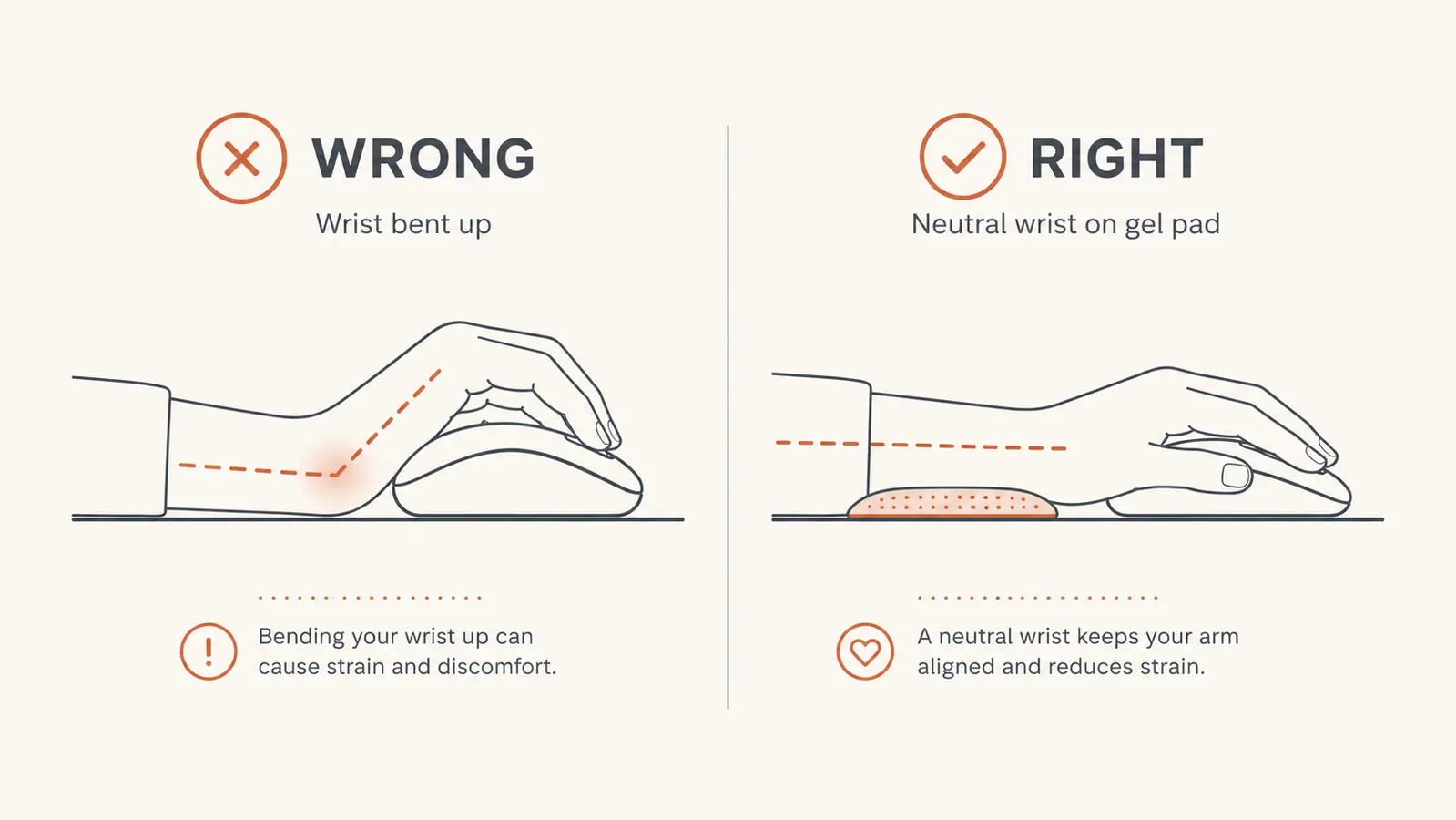
The specific problem with mouse use is what ergonomists call wrist extension: bending the hand backward toward the forearm while you click and scroll. Even a few degrees of sustained extension dramatically increases the pressure inside the carpal tunnel. A standard desk surface sits at 28 to 30 inches, which is fine for most people between 5'6" and 5'10". If you're taller, a desk riser or a sit-stand desk is worth the investment. If you're shorter, a chair with adjustable height combined with a footrest gets you there without replacing the desk. The goal is a flat, neutral wrist on the surface, not one kinked upward to reach the mouse.
A quick test: place your mouse on your current pad and rest your wrist on the desk beside it. Look at the angle from the side. If the wrist bends up at all to reach the mouse buttons, the surface is too high or the pad doesn't provide enough wrist support to bridge the gap. Fix the height first, then move to Step 2.
Step 2: Switch to a Mouse Pad with Gel Wrist Support
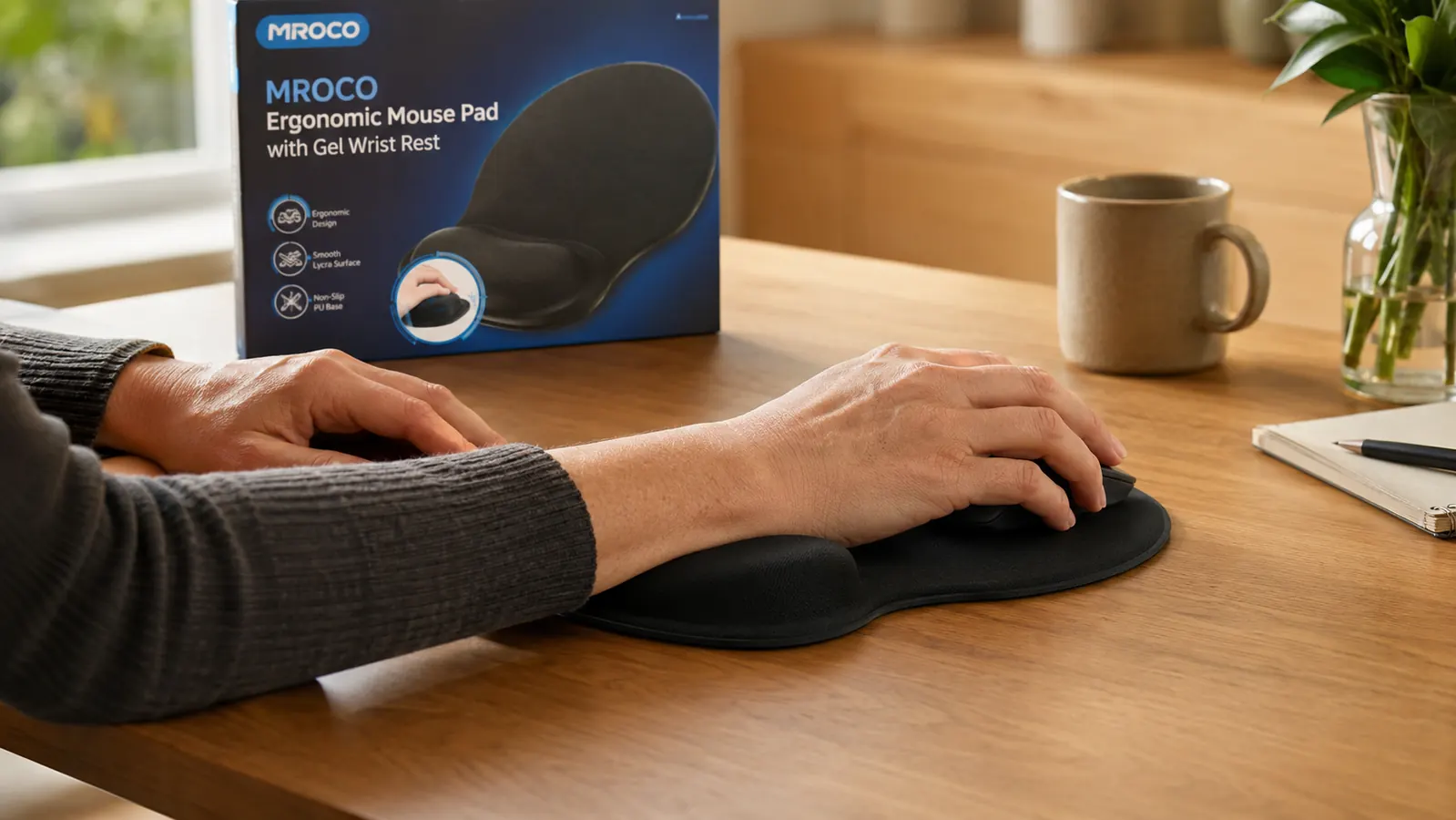
This is where most people start when they finally Google wrist pain, and it's where I started too. The MROCO ergonomic mouse pad with gel wrist rest is the one I've used daily for months now and the one I'd recommend to anyone who asks. It's a 9.4 x 8.1 inch pad with a firm gel cushion along the bottom edge that props your wrist at a slight elevation so your hand meets the mouse in a neutral position rather than reaching up to it. The gel is dense enough to hold its shape over a full workday, unlike cheaper foam versions that compress and go flat by mid-morning.
The tracking surface matters too. MROCO uses a smooth-weave lycra top that works well with both optical and laser mice without the micro-stuttering you get on bare wood or glass. The rubber base doesn't creep around the desk, which sounds minor until you've spent time on a pad that migrates two inches to the left every hour. At its current price, this pad has genuinely no comparable alternative that I've found at this level. The 34,000 Amazon ratings with a 4.6 average is the market telling you something real.
Positioning the wrist rest correctly matters as much as having one. The cushion should support your wrist during neutral moments, not while you're actively moving the mouse. When you're tracking, your palm should lift slightly off the rest so it doesn't drag. When you're reading, typing, or pausing, let the wrist settle onto the cushion. This sounds obvious but it's the opposite of what most people do instinctively, which is to press into the pad while mousing and wonder why they're still sore.
Step 3: Adjust Your Mouse Sensitivity to Reduce Total Movement
This one costs nothing and takes two minutes. Open your operating system's mouse settings and increase the pointer speed by one or two notches above where you currently have it. Every pixel of mouse movement on screen requires a corresponding physical movement of your hand and wrist. If your sensitivity is set low, you're making large sweeping movements across the pad hundreds of times per day. Higher sensitivity means smaller movements to cover the same on-screen distance, which reduces the cumulative strain on wrist tendons and muscles over an eight-hour day.
On Windows, go to Settings, Bluetooth and Devices, Mouse, then adjust the pointer speed slider. On Mac, go to System Settings, then Trackpad or Mouse, and raise the tracking speed. Most people have their mouse sensitivity set to whatever it defaulted to on setup, which is often lower than what they actually need. I run mine at about 70 percent of maximum, which feels fast for the first hour and then becomes invisible. The adjustment period is real but short.
Every pixel of mouse movement on screen requires a physical movement of your wrist. Thousands of small movements per day add up to the kind of strain that shows up as an ache on Friday afternoon.

Step 4: Build In Micro-Breaks That Target the Tendons
The wrist is controlled by tendons that run from the forearm through a narrow passage at the wrist called the carpal tunnel. When those tendons are overworked and never given time to decompress, the tissue around them swells slightly, and that swelling is what produces the characteristic ache of repetitive strain. The fix isn't to take long breaks from work. It's to take very short, very frequent ones that interrupt the sustained load on those tendons.
The simplest version of this is the 20-20-2 rule: every 20 minutes, step away from the mouse for 20 seconds and do two specific movements. First, extend your arm in front of you with your palm up and use your other hand to gently pull your fingers back toward your body, holding for 10 seconds. This stretches the flexor tendons on the underside of the wrist. Second, flip your palm down and gently push your fingers toward the floor, holding for 10 seconds. This stretches the extensors on top. Two stretches, 20 seconds total, every 20 minutes. Set a recurring timer if you won't remember on your own. I use a browser extension called Stretchly that pops up a reminder.
A second movement worth adding is periodically removing your hand from the mouse entirely and resting it flat on the desk with the wrist in a neutral position, fingers uncurled. People working with a mouse subconsciously grip it tighter than necessary, which builds tension in the forearm muscles over hours. The conscious act of fully relaxing the hand on the desk for 30 seconds resets that grip tension before it compounds.
Step 5: Audit Your Keyboard Position and Relocate the Mouse
The keyboard and mouse are usually placed side by side, with the mouse pushed out to the right of the keyboard's full width including the numpad. This forces most people to reach their right arm out farther than necessary to use the mouse, which rotates the shoulder externally and transmits tension down through the forearm into the wrist. Two changes help significantly. First, if you're using a full-size keyboard with a numpad and you use the numpad rarely, switch to a compact tenkeyless or 75 percent keyboard. This brings the mouse 2 to 3 inches closer to your body, which changes the arm geometry entirely.
Second, position the mouse so your elbow is close to your body when you use it, not extended outward. Your elbow should stay within a few inches of your torso. If you have to straighten your arm to reach the mouse, it's too far. This is harder to fix on a narrow desk, where the keyboard already takes up most of the width. In that case, a keyboard tray that mounts under the desk surface can free up horizontal space on the main surface and give you room to bring the mouse in tighter. This is a longer-term upgrade, but if you've already done Steps 1 through 4 and still have wrist pain that doesn't resolve, keyboard placement is usually the remaining culprit.
What Else Helps
Some people find night splints helpful when wrist pain is acute. A basic wrist splint keeps the wrist in a neutral position overnight so the tendons can recover without the unconscious curling that many people do in their sleep. This is not a fix for poor desk ergonomics, but it's a useful short-term recovery tool while you're working through the five steps above. If pain doesn't improve within two to three weeks of consistent ergonomic changes, an occupational therapist can provide a formal workstation assessment and, if necessary, a targeted stretching program. Persistent numbness or tingling is a different signal than general aching and should be evaluated by a physician sooner rather than later.
Everything in this guide costs either nothing or very little. Adjusting your chair takes a minute. Raising your mouse sensitivity costs nothing. The MROCO mouse pad is budget-friendly and will outlast any number of more expensive productivity gadgets you might buy this year. Wrist problems are easier to prevent than to recover from. Most people wait until the pain is consistent before making changes, which is exactly backward. The time to fix your desk setup is before the ache becomes a pattern you're working around.
Five steps take an afternoon. The MROCO wrist rest takes five seconds to set up.
If you're going to make one change from this guide today, start with the mouse pad. The MROCO ergonomic gel wrist rest is the cheapest, fastest ergonomic upgrade on this list, and it's the one with 34,000 people already confirming it works.
Amazon Check Today's Price on Amazon →